
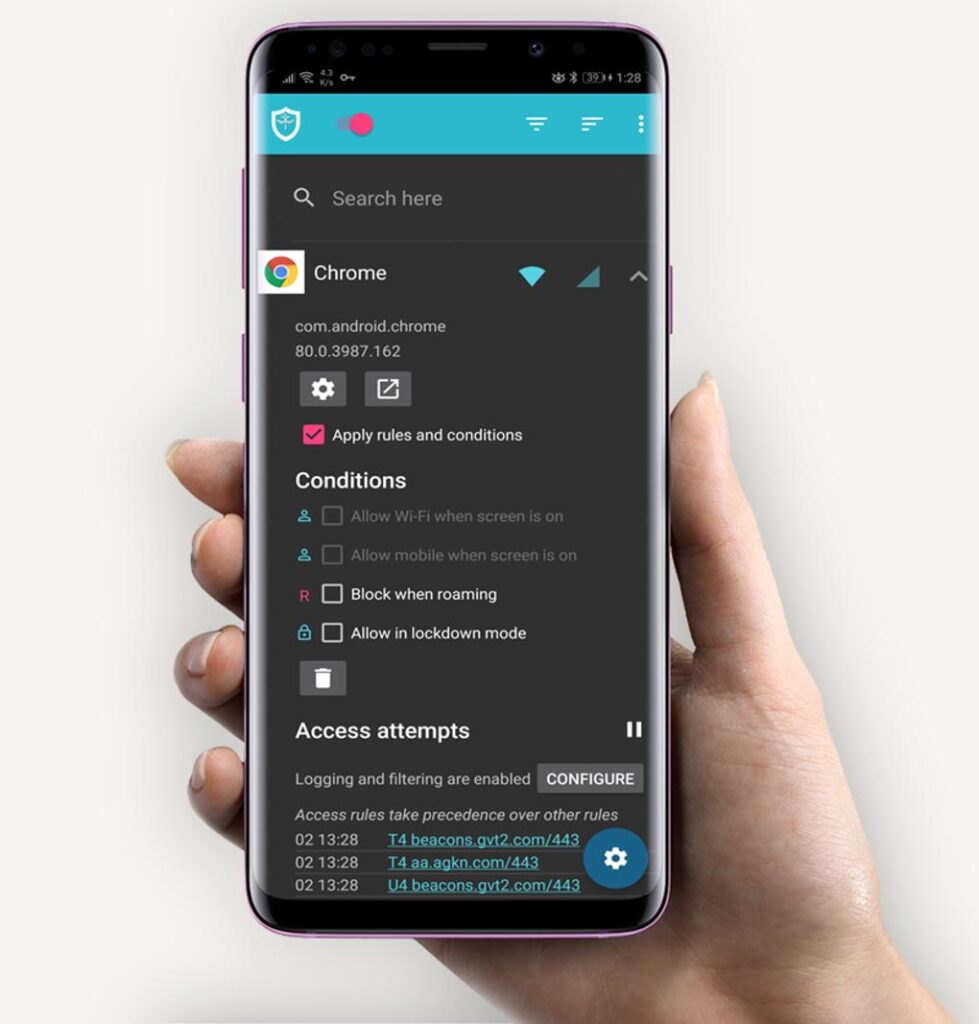
Have you ever noticed that some applications on your Android phone continue using mobile data or Wi-Fi even when you are not actively using them? Many apps run background processes to synchronize information, download updates, display notifications, and communicate with online servers.
Although some background activities are necessary, others may consume valuable internet data, affect battery life, and create unnecessary network connections.
This is where InternetGuard – No Root Firewall can help.
InternetGuard is an Android firewall application developed by SheikhSoft. It allows users to control which applications can access the internet through Wi-Fi or mobile data without requiring root access.
Unlike traditional VPN applications, InternetGuard is designed to manage network connections on your device rather than hide your IP address or provide an encrypted VPN connection.
In this article, we will explore its features, how it works, how to configure it, its advantages and limitations, and whether it is worth installing on your Android smartphone.
What Is InternetGuard No Root Firewall?
InternetGuard is a firewall application that gives Android users more control over their applications’ internet connections.
Normally, Android allows installed applications to connect to the internet whenever they have the required permissions. InternetGuard adds another layer of control by allowing users to decide which applications can access Wi-Fi and mobile data.
For example, you might want WhatsApp and your browser to remain connected while preventing an offline game or another application from using mobile data in the background.
InternetGuard makes this possible through an easy-to-use interface.
One of its most important advantages is that it works without requiring root access. This means users can benefit from application-level internet controls without modifying their Android operating system.
The application supports Android 5.1 and later versions, according to its Google Play listing.
How Does InternetGuard Work?
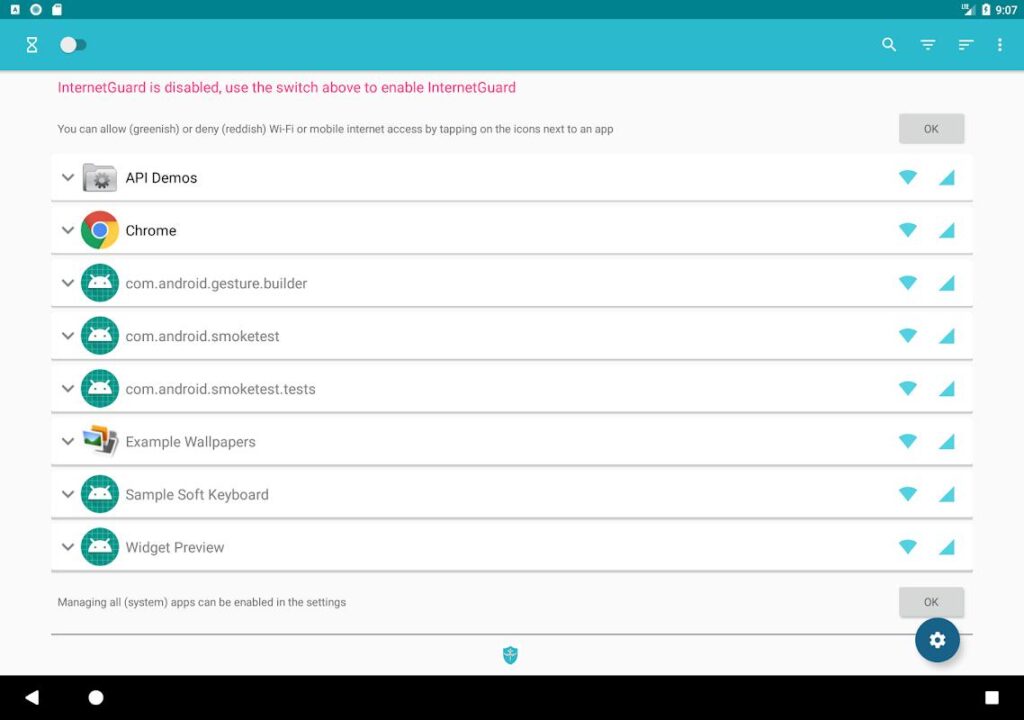
InternetGuard uses Android’s built-in VPN service to create a local firewall on your smartphone.
When you activate the application, Android routes network traffic through its local VPN interface. InternetGuard then applies the rules you have configured to determine which connections should be allowed or blocked.
It is important to understand that this does not mean your internet traffic is being sent through a remote VPN server.
InternetGuard uses the VPN interface locally to filter network connections. It does not function like a conventional commercial VPN service.
This approach makes it possible to provide firewall functionality without root access.
Users should also understand that Android generally allows only one VPN-based application to use its VPN service at a time. Therefore, InternetGuard may conflict with another VPN application running simultaneously.
Top Features of InternetGuard
InternetGuard offers several useful features for Android users.
- Block Internet Access for Individual Applications
One of its most useful features is the ability to allow or block internet access for individual applications.
For example, you can:
- Allow WhatsApp to use Wi-Fi and mobile data.
- Block a game from accessing mobile data.
- Prevent selected applications from connecting through Wi-Fi.
- Disable internet access for applications you rarely use.
This gives you greater control over how your smartphone uses the internet.
- Control Wi-Fi and Mobile Data Separately
InternetGuard allows users to manage Wi-Fi and mobile data connections independently.
This is particularly helpful for people who have limited mobile data packages.
For instance, you can allow an application to connect through Wi-Fi while blocking its access to mobile data.
This feature can help prevent unnecessary mobile data consumption.
- Block Background Internet Activity
Some applications continue communicating with online servers even when they are not open on your screen.
InternetGuard provides options to restrict selected applications’ background network activity.
This can help reduce unnecessary connections and give users more control over their devices.
- Monitor Data Usage
InternetGuard includes a Data Usage feature that allows users to check internet consumption by individual applications.
This can help identify applications that use more data than expected.
It is particularly useful when you have a limited internet package and want to understand where your data is going.
- Block Specific Internet Addresses
Another advanced feature is the ability to allow or block individual internet addresses for specific applications.
This provides additional control over outgoing network connections.
It may be useful for advanced users who want to investigate or manage particular network destinations.
- View Network Activity Logs
InternetGuard can record outgoing network traffic and provide information about connection attempts.
Users can search and filter these records to understand which applications are attempting to communicate with external addresses.
The application also supports exporting PCAP files, which can be examined using compatible network analysis software.
- Notifications for Newly Installed Applications
When a newly installed application attempts to access the internet, InternetGuard can notify you.
This is useful because it helps you become aware of new applications that are communicating online.
You can then review their network access settings and decide whether to allow or block them.
- Block Websites and Manage Domains
InternetGuard also offers domain-level filtering capabilities.
Depending on the available filtering configuration, users can block selected websites or domains.
This can provide additional control over browsing activity and help restrict access to unwanted websites.
- Automatic Startup
InternetGuard includes an option to launch automatically when your device starts.
This is useful for people who want their firewall settings to remain active after restarting their smartphones.
However, some Android manufacturers restrict background applications, so you may need to adjust battery optimisation and automatic startup settings.
- Light and Dark Themes
The application provides a Material Design interface with light and dark themes, along with additional theme options.
This allows users to choose an appearance that suits their preferences.
How to Use InternetGuard on Android
Getting started with InternetGuard is relatively simple.
Follow these steps:
Step 1: Download the Application
Open Google Play Store and search for InternetGuard – No Root Firewall.
You can also visit the official download page using the link below.
Step 2: Install and Open the Application
After installation, open InternetGuard and allow it to display your installed applications.
You should see a list of applications available on your device.
Step 3: Activate the Firewall
Find the main activation switch in the application’s toolbar and turn it on.
Android will display a VPN connection permission request. Review it and approve it if you want to activate InternetGuard.
Step 4: Select Applications
Find the application whose internet access you want to control.
InternetGuard provides separate controls for Wi-Fi and mobile data.
You can allow or block each connection type according to your requirements.
Step 5: Check Your Settings
After configuring the applications, review your settings to make sure important services can still access the internet.
Be careful when blocking system applications because doing so may affect notifications, updates, downloads, and other Android functions.
Is InternetGuard Safe to Use?
Security and privacy are important considerations when installing any application that manages network connections.
InternetGuard is presented by its developer as an open-source, no-root firewall. Its source code is available publicly, allowing technically experienced users to inspect how it works.
The developer’s privacy policy states that InternetGuard does not collect user information and does not forward allowed traffic through a remote VPN server.
However, Google’s Play Store Data Safety section also lists app information, performance information, and device or other IDs among data types the application may collect. It states that no data is shared with third parties.
Because these disclosures are not identical, privacy-conscious users should review both the developer’s current privacy policy and Google Play’s Data Safety information before installing the application.
Remember that no firewall application can guarantee complete protection against every online threat.
InternetGuard is primarily designed to control network access, not replace antivirus software, secure browsing practices, or a conventional encrypted VPN.
Advantages of InternetGuard
Here are some of its main advantages:
- No root access required.
- Individual application internet controls.
- Separate Wi-Fi and mobile data management.
- Background connection restrictions.
- Application-level data usage information.
- Network activity logging.
- Domain and address filtering.
- Open-source availability.
- Automatic startup options.
- Customisable interface.
These features make it a useful option for Android users who want more control over their internet connections.
Limitations You Should Know
Although InternetGuard offers several useful features, there are some limitations worth understanding.
It is not a traditional VPN: It does not hide your public IP address or encrypt your internet traffic like a conventional VPN service.
VPN conflicts: Android generally allows only one active VPN service at a time, so another VPN application may not work simultaneously.
Battery considerations: Filtering network traffic may introduce some additional battery consumption, depending on your device and configuration.
Android background restrictions: Some smartphone manufacturers may stop background services to save battery power. You may need to adjust battery optimisation settings.
Firewall configuration requires attention: Blocking essential system applications can interrupt important services, including Google Play downloads and notifications.
Understanding these limitations will help you use the application more effectively.
Who Should Use InternetGuard?
InternetGuard may be useful for several types of Android users.
Users with limited mobile data: People with small internet packages can block unnecessary mobile data access for selected applications.
Privacy-conscious users: Those who want more control over which applications can establish internet connections may find its firewall features useful.
Students: Students who want to reduce unnecessary background activity while studying can use application-level internet controls.
Parents and families: Domain filtering and application connection controls may help manage certain types of internet access, although the application should not be considered a complete parental control solution.
Advanced Android users: Users interested in network monitoring, connection logs, and address filtering may appreciate its advanced features.
Frequently Asked Questions (FAQs)
Does InternetGuard require root access?
No. InternetGuard uses Android’s VPN service to provide firewall functionality without requiring root access.
Does InternetGuard hide my IP address?
No. It is not designed to hide your public IP address or encrypt your internet traffic.
Can I block internet access for only one application?
Yes. You can configure individual applications to allow or deny access to Wi-Fi and mobile data.
Can InternetGuard save mobile data?
It can help reduce unnecessary data consumption by blocking selected applications from accessing the internet.
Actual savings depend on your applications and usage habits.
Can I use InternetGuard with another VPN?
Generally, Android permits only one active VPN service at a time. InternetGuard and another VPN application may therefore conflict. Advanced users can investigate its SOCKS5 proxy support for compatible configurations.
Does InternetGuard work after restarting my phone?
It offers an automatic startup option. However, some Android devices may restrict background services, so additional battery and startup settings may be necessary.
Final Verdict: Is InternetGuard Worth Installing?
InternetGuard – No Root Firewall is a useful Android application for people who want greater control over their smartphone’s internet connections.
Its ability to block individual applications, manage Wi-Fi and mobile data separately, monitor network activity, and restrict background connections makes it a practical tool for everyday Android users.
One of its biggest advantages is that it provides firewall functionality without requiring root access.
However, users should remember that it is not a traditional VPN, does not hide their IP address, and cannot guarantee complete online privacy or security.
If your main goal is to control which applications can access the internet, reduce unnecessary background activity, and monitor data usage, InternetGuard is worth considering.