
Introduction
Have you ever received an important WhatsApp message, only to discover that the sender deleted it before you could read it? Or perhaps you wanted to save a photo, video, or WhatsApp Status before it disappeared?
Losing important messages and media files can be frustrating, especially when they contain useful information, memorable moments, or something you need later. Fortunately, Android users have access to apps designed to help monitor notifications, save media files, and keep important content accessible.
One such application is Undele – Media Recovery, developed by Hassan studio. It is designed to help users view deleted messages through notification history, save WhatsApp Status updates, recover certain media files, and back up important content.
In this guide, we will explore its main features, how it works, the permissions it requires, its limitations, and how you can download it.
What Is Undele – Media Recovery?
Undele – Media Recovery is an Android application that provides several tools for managing messages and media files.
Its primary purpose is to help users access messages detected through Android notifications and save media content before it disappears. The app also includes a Status Saver feature and media backup options.
According to its Google Play description, the application supports different types of content, including:
- Text messages
- Photos and images
- Videos
- Audio files
- Documents
- WhatsApp Status images and videos
The app combines these functions in one interface, making it easier for users to manage certain types of deleted or temporary content.
It is important to understand that Undele does not guarantee the recovery of every deleted message or file. Its performance depends on notification availability, permissions, and whether the original media is still accessible on the device.
Main Features of Undele – Media Recovery
1. Recover Deleted Messages
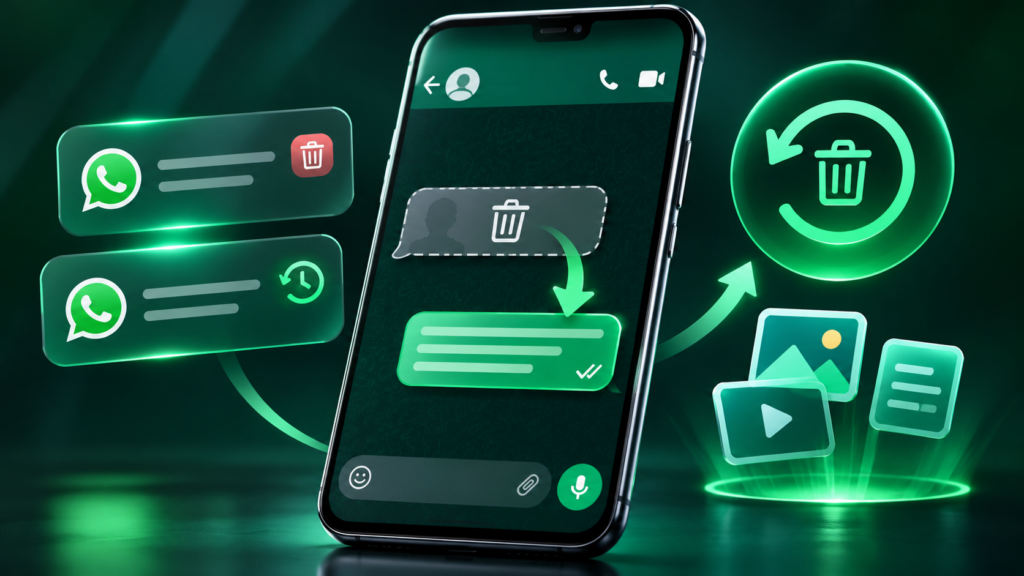
One of the main features of Undele is its ability to help users read messages that senders have deleted.
When a supported messaging application displays a message notification, Undele can use notification access to detect and save the notification content.
If the sender later deletes the message, you may still be able to view the previously saved notification inside Undele.
This can be useful when:
- Someone deletes a message before you read it.
- You accidentally miss an important notification.
- You want to review a message without opening the original conversation.
However, this feature has an important limitation: messages received before installing and configuring Undele generally cannot be recovered through its notification monitoring system.
2. Recover Photos and Videos
Undele also provides media recovery features for supported files.
Users may be able to access certain photos and videos that were previously available on their devices or saved through the app’s supported processes.
Supported media types include:
- JPG and other image files
- Video files
- Audio recordings
- Other supported media attachments
The success of recovery depends on whether the original file or a saved copy still exists in accessible device storage.
If a file has been permanently removed and no accessible copy or backup exists, the app cannot guarantee that it can restore it.
3. WhatsApp Status Saver
WhatsApp Status updates usually disappear after 24 hours.
Sometimes, users see a useful image, video, announcement, or memorable moment and want to keep it.
Undele includes a Status Saver feature that helps users save supported WhatsApp Status images and videos to their devices.
This feature can be useful for:
- Saving memorable status updates.
- Keeping useful videos for personal reference.
- Saving images that you may want to view later.
Always respect the privacy and copyright of other people’s content before saving or sharing it.
4. Media Backup
Another useful feature is media backup.
Users can use the application to keep important supported media files together rather than searching through different folders every time.
Having organized copies of important files can make them easier to find and manage.
However, users should not treat this feature as a replacement for a complete cloud or external backup system.
5. Automatic Media Saving
Undele also offers an automatic saving option.
When enabled and configured correctly, this feature can automatically save supported new Status updates and media content.
This may reduce the need to save every item manually.
The actual results depend on the permissions granted, Android background restrictions, and the availability of the media files.
6. Support for Multiple Media Formats
The application is not limited to text messages.
Its Google Play description lists support for multiple content types, including:
- Images
- Videos
- Audio files
- Documents
This makes it a useful option for users who want several media-management functions in one application.
7. Simple and User-Friendly Interface
Undele is designed with a straightforward interface.
Users can access its main features without needing advanced technical knowledge.
The application brings together message recovery, media management, Status Saver, and backup options, helping users navigate between different functions from one place.
How Does Undele Work?
Undele mainly relies on Android notification access to detect incoming messages.
When a supported messaging app displays a notification, Android can allow Undele to read the notification content after the user grants the required permission.
The app can then save supported notification information so that it may remain available even if the original message is deleted later.
For media files, recovery depends on the availability of the original files or previously saved copies.
Here is a simplified explanation:
- Install Undele from Google Play.
- Open the application.
- Review the requested permissions.
- Enable Notification Access if you want to use deleted-message detection.
- Configure the supported features.
- Allow the application to detect supported notifications and manage accessible media.
- Open Undele to check saved messages or available media.
Remember that notification access is essential for its deleted-message detection feature.
How to Use Undele – Media Recovery
If you are using the application for the first time, follow these general steps.
Step 1: Download the Application
Open Google Play Store and search for Undele – Media Recovery.
You can also use the official download link provided at the end of this article.
Step 2: Install and Open the App
After installation, open Undele on your Android phone.
Explore the available options and read the permission explanations before enabling them.
Step 3: Grant Notification Access
If you want to detect deleted messages, the application needs notification access.
Open the permission settings when prompted and enable access for Undele.
Only grant this permission if you understand and accept that the application may read notification content from supported apps.
Step 4: Configure Media Permissions
Some media features may require storage or media access permissions.
Allow only the permissions necessary for the functions you intend to use.
The exact permission names can vary depending on your Android version.
Step 5: Start Using the Features
Once the setup is complete, you can explore the available sections for deleted messages, media files, Status Saver, and backup options.
The application can only work with information it can access after the necessary setup.
Is Undele Safe to Use?
Privacy is an important consideration when installing any application that can access notifications, messages, or personal media.
According to its Google Play Data Safety section, the developer declares that the app does not share data with third parties and does not collect data.
However, these details are developer-provided declarations and should not be treated as an independent security audit.
Users should pay particular attention to Notification Access because it can expose message previews and other notification information to the application.
Before using Undele, consider these precautions:
- Download the app from its official Google Play listing.
- Read the privacy policy before granting permissions.
- Enable only the permissions you actually need.
- Avoid sharing private messages or saved media without permission.
- Keep your Android device and applications updated.
You should also remember that notification access may expose sensitive information from more than one messaging application, depending on your device settings.
Advantages of Undele – Media Recovery
Here are some potential benefits of using the application:
- Helps users view certain deleted messages saved from notifications.
- Provides a Status Saver feature.
- Supports several media formats.
- Offers media backup functionality.
- Includes an automatic saving option.
- Combines several media-management tools in one app.
- Has a simple interface for everyday users.
Limitations You Should Know
Although Undele offers useful features, it is important to understand its limitations.
1. It cannot recover every deleted message. If a message was received before the app was installed or notification access was enabled, it generally cannot retrieve it through notification monitoring.
2. Notification access is required. The deleted-message detection feature depends on access to Android notifications.
3. Media recovery is not guaranteed. Files that have been permanently deleted without an accessible copy may not be recoverable.
4. Android restrictions may affect performance. Battery optimization, background restrictions, and device-specific settings can affect how reliably the app operates.
5. Privacy requires attention. Notification access may expose sensitive information, so users should review the app’s privacy policy and permissions.
Understanding these limitations can help you decide whether the application meets your needs.
Who Should Use Undele?
Undele may be useful for Android users who:
- Want to keep track of certain deleted messages.
- Frequently receive WhatsApp Status updates they want to save.
- Need a convenient way to manage supported media files.
- Want to organize important media in one application.
- Prefer having notification-based message monitoring tools.
However, if you need professional data recovery from a damaged or formatted phone, this application should not be considered a complete data recovery solution.
Frequently Asked Questions (FAQs)
1. Can Undele recover deleted WhatsApp messages?
It can help display certain deleted messages that were previously detected and saved through notifications. It cannot guarantee recovery of every deleted message.
2. Can I recover messages deleted before installing Undele?
Generally, no. The app needs to detect notifications after it has been installed and configured.
3. Does Undele save WhatsApp Status videos?
The app includes a Status Saver feature designed to save supported WhatsApp Status images and videos.
4. Does Undele require notification access?
Yes. Notification Access is required for its deleted-message detection feature.
5. Can Undele recover deleted photos and videos?
It may help access certain media files, depending on whether the files or saved copies remain available on the device. Recovery is not guaranteed.
6. Is Undele free?
The Google Play listing indicates that the application contains advertisements and in-app purchases. Some features or experiences may therefore involve additional costs.
7. Is Undele available for Android?
Yes. Undele – Media Recovery is listed on the Google Play Store as an Android application.
Final Verdict
Undele – Media Recovery is an application worth exploring if you want to manage notification-based deleted-message detection, save WhatsApp Status updates, and organize supported media files in one place.
Its biggest advantage is that it combines several useful tools in a single application instead of requiring separate apps for every task.
However, users should understand that it cannot recover every deleted message or permanently removed media file. Its performance depends on notification access, device permissions, and file availability.
If you want to try these features, download the application from its official Google Play listing and review its permissions before getting started.