
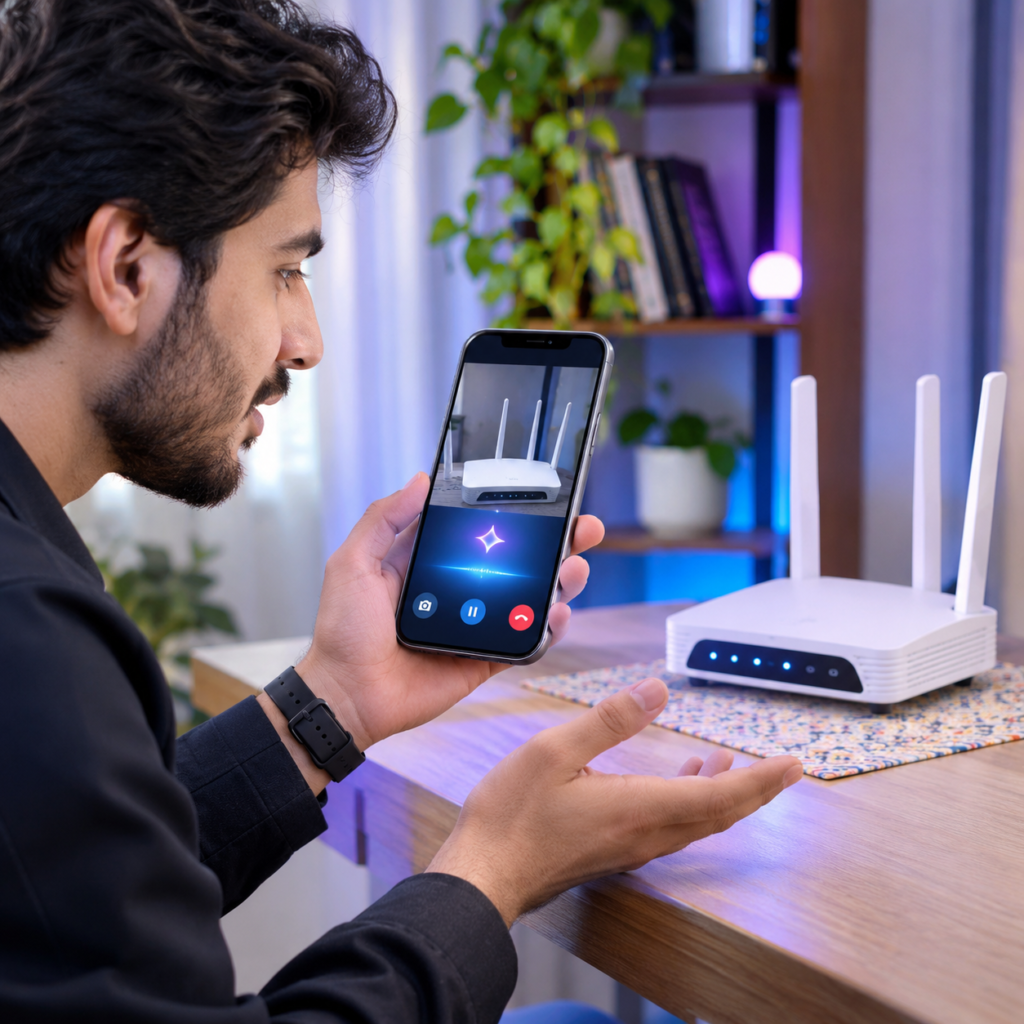
Imagine pointing your smartphone camera at an unfamiliar object, a machine, a plant, a document, or even a complicated problem and asking an AI assistant what it is. Instead of taking a picture, uploading it, and waiting for an answer, you can simply show it through your camera and talk to the AI in real time.
This is exactly what Google Gemini Live Camera makes possible.
Google Gemini is more than a traditional chatbot. With its Gemini Live feature, you can have a natural voice conversation with Google’s AI assistant while sharing your phone’s camera or screen. Gemini can analyze what you show it, understand the visual context, and provide explanations, suggestions, and answers to your questions.
For example, you can point your camera at an electronic device and ask how it works, show it a plant and ask for its name, or share your phone screen and request help navigating an application.
In this guide, we will explore Google Gemini Live Camera, how it works, its most useful features, how to use it on Android, and why it is becoming an interesting tool for everyday life, education, and productivity.
What Is Google Gemini?
Google Gemini is an artificial intelligence assistant developed by Google. It helps users find information, understand complex topics, write content, translate languages, generate ideas, analyze images, and complete different tasks.
The Gemini mobile application allows users to communicate with AI in several ways, including text, voice, images, and camera input.
One of its most interesting features is Gemini Live, which makes conversations with AI feel more natural. Instead of typing every question, you can speak directly to Gemini and receive spoken responses.
With camera sharing enabled, Gemini can also see what your phone camera is showing and discuss it with you.
What Is Gemini Live Camera?
Gemini Live Camera is a feature that allows you to share your smartphone camera during a live conversation with Gemini.
After activating the camera, you can point your phone toward something and ask questions about what appears on the screen. Gemini processes the visual information and responds based on what it can identify.
For example:
- Show Gemini an unfamiliar object and ask what it is.
- Point your camera at a plant and ask about its possible name and care requirements.
- Show an electronic device and ask for help understanding its buttons.
- Show a document and ask for an explanation of its contents.
- Point your camera at a product and ask about its features.
- Show a household problem and request possible troubleshooting steps.
The most interesting part is that you do not need to stop and upload a new photograph for every question. You can continue the conversation while showing Gemini different things.
However, Gemini does not recognize everything perfectly. Its answers depend on image quality, lighting, context, and the information available to the AI. Always verify important information.
How to Use Google Gemini Live Camera on Android
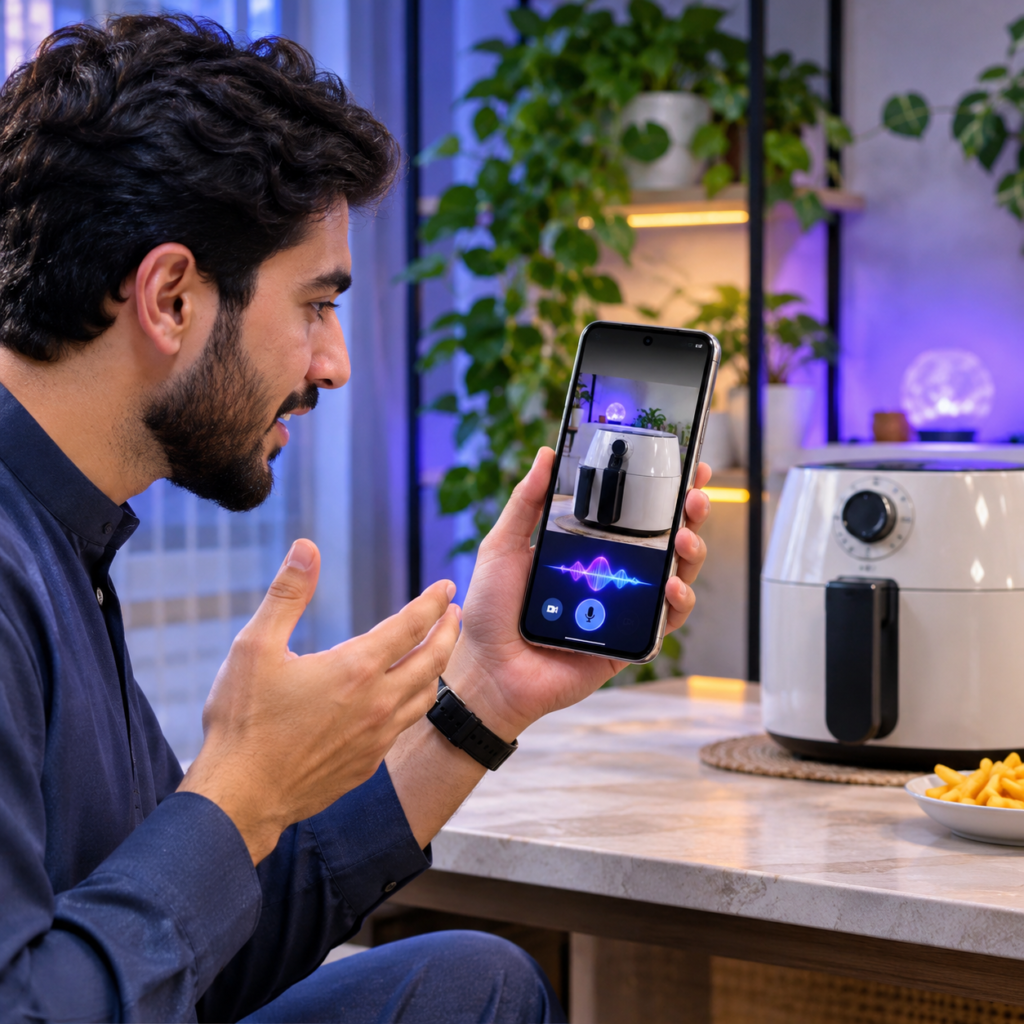
Getting started with Gemini Live Camera is relatively simple. Follow these steps:
Step 1: Download Google Gemini
Open the Google Play Store on your Android smartphone.
Search for Google Gemini or visit its official Play Store page. Install the application and open it.
Step 2: Sign In to Your Google Account
Sign in using your Google account if required.
Make sure you are using the latest available version of the application. Some features may vary depending on your account, device, country, and language.
Step 3: Open Gemini Live
Open the Gemini application and find the Live option near the bottom of the screen.
Tap the Live icon to start a live conversation.
You can now speak to Gemini instead of typing your questions.
Step 4: Turn On Your Camera
During the Live conversation, tap the camera or video-sharing icon.
If Android asks for camera permission, allow access if you want to use this feature.
Your phone’s camera will begin sharing what it sees with Gemini.
Step 5: Point Your Camera at Something
Point your smartphone camera toward the object, document, machine, or surrounding area you want Gemini to examine.
For example, you could show it a smartphone charger and ask:
“What is this device, and what is it used for?”
Gemini will analyze the available visual information and respond.
Step 6: Ask Follow-Up Questions
You do not have to stop after receiving the first answer.
You can ask additional questions, change the camera angle, or show another object.
For example:
- “Can you explain this in simple language?”
- “How does this work?”
- “What should I do next?”
- “Can you give me step-by-step instructions?”
This makes Gemini Live feel more like a conversation with an assistant than a traditional image-search tool.
10 Useful Ways to Use Gemini Live Camera
Gemini Live Camera can be useful in many everyday situations. Here are ten practical examples.
1. Identify Unfamiliar Objects
Have you ever found an object but had no idea what it was called?
Simply point your camera at it and ask Gemini to identify it.
It may explain the object’s possible name, purpose, and common uses. If the object is unusual or difficult to recognize, provide additional context.
2. Understand Electronic Devices
If you have an unfamiliar electronic device, Gemini can help explain what its visible buttons, ports, and components might do.
You can show it a router, remote control, charger, or other electronic equipment and ask questions.
For electrical repairs, however, do not rely only on AI instructions. Follow the manufacturer’s safety guidance and consult a qualified technician when necessary.
3. Learn About Plants and Nature
You can point your camera toward a plant, flower, or tree and ask Gemini to identify it.
It may also provide information about watering, sunlight, and general care.
Remember that plant identification can be uncertain, especially when several species look similar.
4. Get Help With Documents
If you are looking at a printed document, sign, or instruction sheet, Gemini can help explain visible text.
You can ask it to summarize information, explain difficult words, or translate text into another language.
For sensitive documents, consider whether you want to share their contents with an AI service before turning on your camera.
5. Learn New Things
Students can use Gemini Live as a learning assistant.
Show it an object, diagram, or educational material and ask for a simple explanation.
You can also ask follow-up questions until you understand the topic better.
6. Get Cooking Assistance
Show Gemini the ingredients available in your kitchen and ask what meals you could prepare.
You can also ask for recipe suggestions, cooking steps, and possible ingredient substitutions.
For food allergies and food safety, verify important recommendations rather than relying entirely on AI.
7. Troubleshoot Everyday Problems
Suppose a household device is displaying an unfamiliar warning light or error message.
You can show Gemini the device and ask what the warning might mean.
It may suggest possible causes and basic troubleshooting steps.
For dangerous electrical, gas, or mechanical problems, contact a qualified professional.
8. Get Shopping Advice
While shopping, you can show Gemini a product and ask about its visible features.
You might ask it to explain product labels, compare two items, or suggest questions to consider before purchasing.
Gemini can help you understand what you are looking at, although you should independently verify prices, specifications, and product claims.
9. Understand Your Surroundings
You can use the camera to show Gemini a room, workspace, or other surroundings.
Ask for organization suggestions, decoration ideas, or ways to improve the arrangement of objects.
This can be especially useful when planning a small workspace or organizing a room.
10. Get Help With Practical Tasks
Gemini can also act as a visual guide when you are completing a task.
For example, show it a piece of equipment, a confusing control panel, or a household item and ask for an explanation.
You can continue asking questions as you work.
Gemini Live Camera vs. Traditional AI Image Upload
Traditional image-based AI tools usually require you to take a picture or select an existing image before asking a question.
Gemini Live offers a different experience.
With Live Camera, you can share a continuous camera view and speak naturally while Gemini responds. You can change the camera angle, show another object, and ask follow-up questions without repeatedly uploading separate photographs.
The main difference is the interaction style: traditional image uploads are usually based on individual pictures, while Gemini Live supports a more continuous visual conversation.
Both approaches can be useful depending on the task.
Gemini Live Screen Sharing: Another Powerful Feature
Gemini Live is not limited to your smartphone camera.
It also supports screen sharing, allowing you to show Gemini what is displayed on your Android device.
For example, you can:
- Share an application and ask how to use it.
- Show a website and request an explanation.
- Ask questions about information displayed on your screen.
- Get help understanding a confusing setting.
- Request feedback on a design or document.
To use this feature, start a Gemini Live conversation and select the screen-sharing option. Follow the instructions displayed on your phone.
Remember that screen sharing may expose everything visible on your screen. Close private messages and sensitive information before sharing.
Is Google Gemini Live Camera Free?
Google offers Gemini through its mobile application, and access to features can depend on the account and available service tier.
Some Gemini features may be available without a paid subscription, while advanced capabilities or higher usage limits may require a qualifying Google AI plan.
Availability and limits can change over time. Check the current Google Play listing and Gemini application for the latest information about your account.
Privacy and Safety: What Should You Know?
Camera and screen-sharing features are powerful, but users should understand how to use them responsibly.
Before starting a live camera session, remember these points:
- Do not show passwords, banking details, private messages, or confidential documents.
- Ask permission before showing or recording another person.
- Avoid sharing sensitive information belonging to other people.
- Check important answers independently.
- Stop camera or screen sharing when you no longer need it.
Google provides privacy controls and information about how Gemini activity is handled. Users should review the current Gemini Apps Privacy Notice and activity settings to understand how their data is processed and managed.
Advantages of Google Gemini Live Camera
Here are some important advantages of this feature:
- Natural voice conversations with AI.
- Real-time camera sharing during a Live conversation.
- Ability to ask questions about visible objects.
- Follow-up questions without repeatedly uploading images.
- Screen-sharing support.
- Useful for learning and everyday troubleshooting.
- Assistance with understanding documents and products.
- Easy integration with the Gemini mobile application.
Limitations of Gemini Live Camera
Although Gemini Live Camera is impressive, it has some limitations.
1. Answers May Not Always Be Correct: Gemini can misunderstand objects or provide inaccurate information.
2. Internet Connection Is Required: A stable internet connection is important for using the service.
3. Feature Availability May Vary: Some features may not be available to every user, device, account, or country.
4. Camera Quality Matters: Poor lighting, blurry images, or distant objects can make identification more difficult.
5. Privacy Requires Attention: Users should be careful about what they share through their camera and screen.
6. It Is Not a Replacement for Professionals: Medical, electrical, legal, and other high-risk decisions require reliable professional guidance.
Frequently Asked Questions (FAQs)
1. What is Gemini Live Camera?
Gemini Live Camera allows users to share their smartphone camera during a live conversation and ask questions about what the camera shows.
2. Can Gemini identify objects through my camera?
Yes. Gemini can analyze visible objects and provide possible identifications and explanations. However, its identification is not guaranteed to be correct.
3. Can I speak to Gemini instead of typing?
Yes. Gemini Live supports natural voice conversations, allowing you to speak and receive spoken responses.
4. Can Gemini see my phone screen?
Yes. Gemini Live supports screen sharing on compatible devices and accounts. You can share your screen and ask questions about what is displayed.
5. Is Gemini Live Camera available on every Android phone?
Not necessarily. Availability depends on supported devices, software, accounts, countries, languages, and feature rollout.
6. Is Google Gemini free to download?
The Gemini application can be downloaded from Google Play. Some advanced features or usage limits may depend on a paid subscription.
7. Can Gemini Live Camera help students?
Yes. Students can use it to explore objects, understand visual learning materials, ask questions, and receive explanations.
Final Verdict
Google Gemini Live Camera is an interesting example of how artificial intelligence is moving beyond text-based conversations.
Instead of describing everything you see, you can simply point your smartphone camera toward an object and ask Gemini about it. The ability to combine live video, voice conversations, and screen sharing makes the application useful for learning, exploring, shopping, and solving everyday problems.
It is not perfect, and its answers should always be checked when accuracy or safety matters. However, it offers an exciting way to interact with AI using the world around you.
If you want to experience this feature yourself, download Google Gemini from the official Google Play Store and explore Gemini Live.